How to Transfer Data from iPhone 16 to iPhone 17 in Minutes
- September 3, 2025
- 0
Upgrading from the iPhone 16 to the iPhone 17 is exciting, but the thought of moving all your photos, contacts, apps, and settings can feel overwhelming. Don’t worry

Upgrading from the iPhone 16 to the iPhone 17 is exciting, but the thought of moving all your photos, contacts, apps, and settings can feel overwhelming. Don’t worry
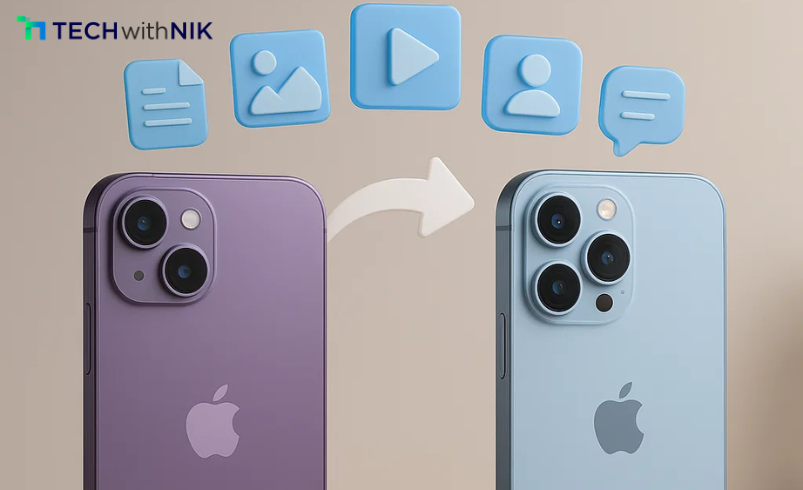
Upgrading from the iPhone 16 to the iPhone 17 is exciting, but the thought of moving all your photos, contacts, apps, and settings can feel overwhelming. Don’t worry — TechwithNik has you covered. In this step-by-step guide, we’ll show you how to transfer data from your old iPhone to your new one in just a few minutes.
Whether you’re switching for performance improvements, camera upgrades, or the latest iOS update features, this guide ensures your transition is smooth and stress-free.
Switching to a new iPhone isn’t just about unboxing the device — it’s about making sure your digital life comes with you. From WhatsApp chats to health data, losing information is not an option. Apple makes this process simple with multiple transfer methods, and knowing the right one for you will save time.
1. Quick Start (Recommended)
Quick Start is Apple’s fastest transfer method, using both Wi-Fi and Bluetooth:
This method copies apps, settings, and personal data directly, making it the most convenient option.
2. iCloud Backup & Restore
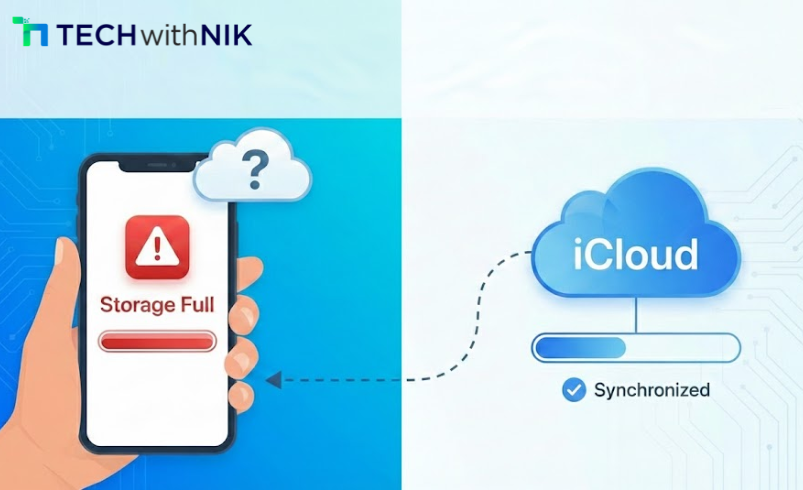
If you prefer cloud storage, iCloud is your friend.
This method requires stable internet and enough iCloud storage but works even if your old device isn’t physically near.
For users who prefer a traditional wired method:
This option is ideal for people with slow internet speeds.
Almost all your purchased apps and subscriptions will sync automatically via your Apple ID. For region-restricted apps, you may need to re-download them manually. Your payment methods and Apple Pay cards can also be re-added during setup.
If you follow iPhone tech news, you’ll know Apple has streamlined this process with every release, making it easier than ever to retain your digital ecosystem.
Reading through a tech blog India like TechwithNik can also help you find region-specific fixes and tips.
Upgrading to the iPhone 17 should be exciting, not stressful. With Apple’s built-in tools like Quick Start, iCloud, and Finder, moving your data takes just minutes. By following these simple steps, you can enjoy your new iPhone right away — with all your important files, photos, and memories intact.
At TechwithNik, we make sure you get the latest, most reliable information on iPhones and other gadgets so your tech journey is always smooth.