Input delay can ruin your gaming experience, making it harder to react quickly in competitive games. Whether you’re playing fast-paced shooters or action-packed fighting games, reducing input lag is crucial for a smoother gaming experience. In this guide, we’ll explore effective ways to fix input delay and improve gaming response time.
What Causes Input Delay?
Input delay, also known as input lag, occurs when there is a noticeable gap between pressing a button and seeing the action on-screen. Some common causes include:
- Slow display response time – A low refresh rate or high response time monitor can cause delays.
- V-Sync and graphics settings – Certain display settings can introduce lag.
- High latency peripherals – Wired controllers and keyboards usually perform better than wireless ones.
- Outdated drivers and firmware – Old drivers can slow down your system.
- Network lag (for online gaming) – Slow internet connections can contribute to delays.
How to Fix Input Delay & Improve Gaming Response Time
1. Use a High-Refresh-Rate Monitor
A monitor with at least 120Hz or 144Hz refresh rate reduces motion blur and improves response time. Also, ensure it has a low response time (1ms to 5ms) for minimal delay.
2. Turn Off V-Sync & Reduce Graphics Lag
V-Sync synchronizes frame rates but often introduces input lag. Disable V-Sync in your game settings and use alternatives like NVIDIA G-Sync or AMD FreeSync to prevent screen tearing without added delay.
3. Optimize Controller & Keyboard Settings
- Use wired peripherals instead of Bluetooth ones for lower latency.
- Check polling rates for gaming mice and keyboards—higher polling rates (e.g., 1000Hz) improve response time.
4. Lower Your Display’s Input Lag Mode
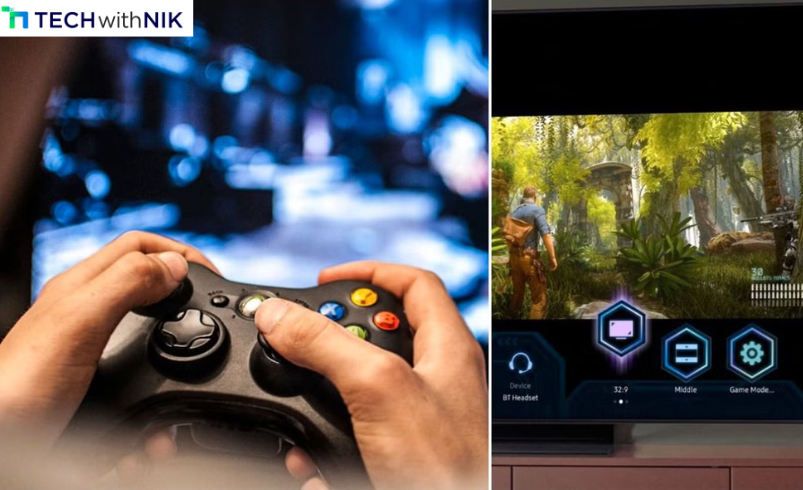
Most gaming monitors have a “Game Mode” that reduces input delay. Enable this mode to enhance real-time response.
5. Update Graphics Drivers & System Firmware
Ensure your GPU drivers, motherboard firmware, and Windows updates are up to date. This can significantly improve gaming performance.
6. Improve Network Connection for Online Games
For multiplayer games, a fast, stable internet connection is key. Use:
- Wired Ethernet instead of Wi-Fi for better stability.
- Low-latency gaming routers to reduce ping spikes.
- Game-specific QoS settings in your router to prioritize gaming traffic.
7. Adjust In-Game & Windows Settings
- Lower graphics settings to maintain a higher FPS.
- Disable background applications that consume resources.
- Set your Windows power mode to “High Performance” for better processing speed.
Final Thoughts
Reducing input delay can dramatically enhance your gaming experience, making movements more responsive and gameplay more immersive. By using a high-refresh-rate monitor, optimizing settings, and ensuring a stable network connection, you can achieve near-instant reaction times for a competitive edge. Try these steps today and enjoy a smoother gaming experience!